Installation Guide
Thank you for choosing ReportWisp to generate reports, analytics dashboards, table views, and business insights for your Shopify store.
ReportWisp is designed to be simple to install and easy to start using. There is no theme setup, storefront extension, checkout extension, code change, or manual configuration required.
Once ReportWisp is installed and the required permissions are approved, the app starts syncing your Shopify store data. After the data sync is complete, you can open ReportWisp, view available reports, use basic date filters, and export report table data where available.
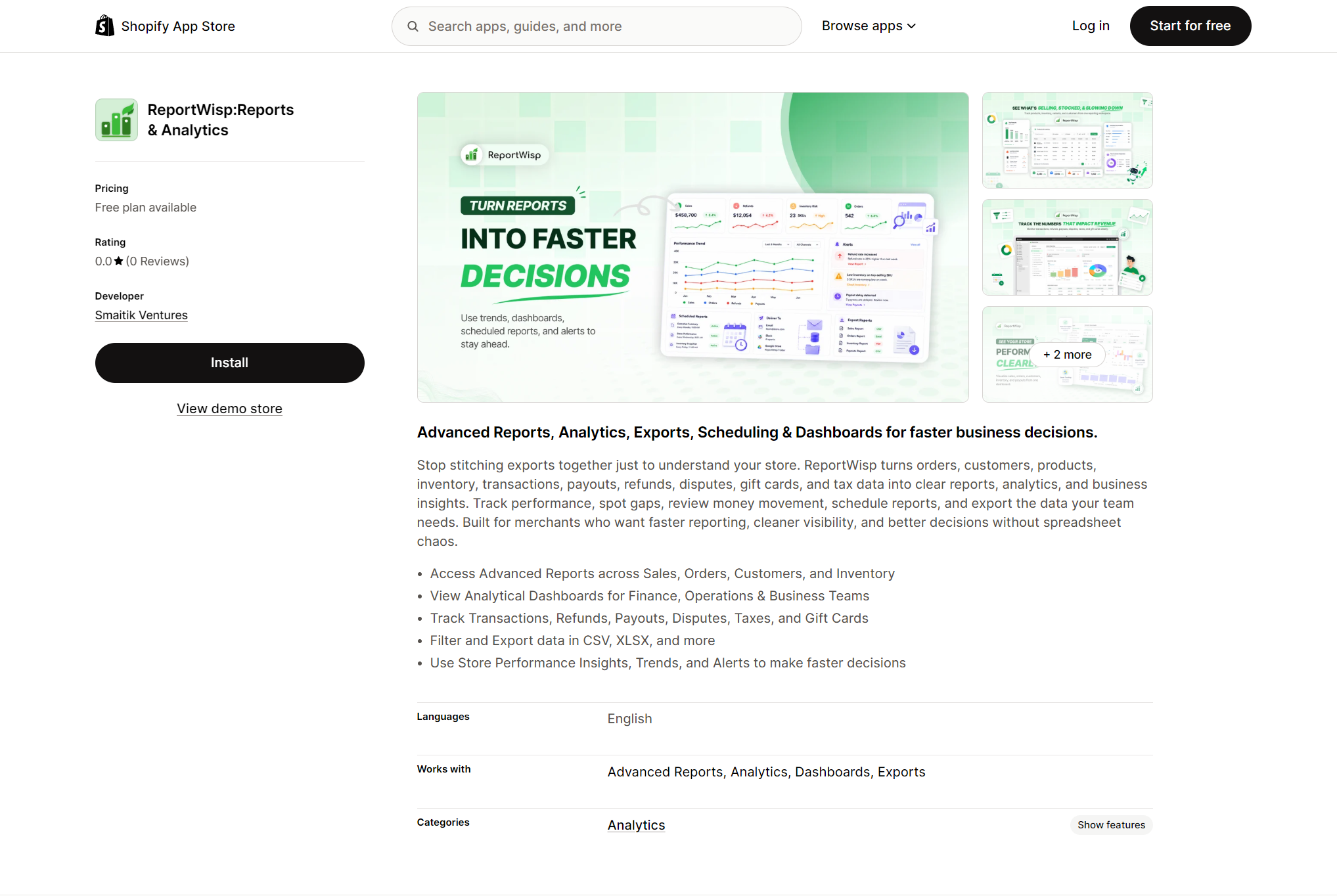
Step 1: Access ReportWisp on the Shopify App Store
You can also find it manually by following these steps:
- Go to the Shopify App Store.
- Search for ReportWisp.
- Open the ReportWisp app listing.
- Review the app details, available reports, pricing, and supported reporting use cases.
- Click Install to begin the installation.
Make sure you are logged in to the Shopify store where you want to install ReportWisp.
Step 2: Install ReportWisp
From the ReportWisp app listing page, click Install.
Shopify will redirect you to your Shopify admin to continue the installation process.
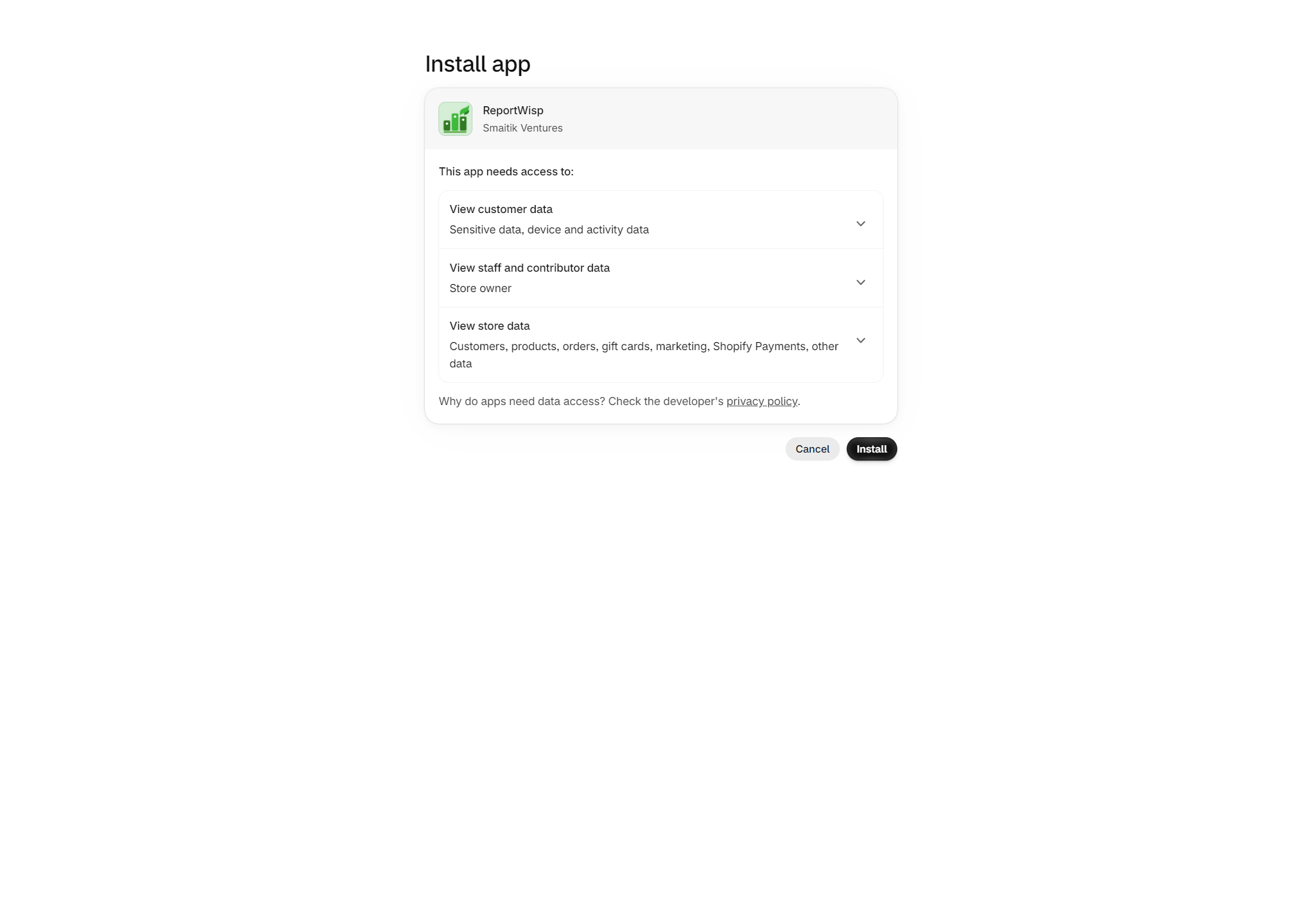
During installation, Shopify will show the permissions requested by ReportWisp. These permissions allow ReportWisp to read the store data required for reporting and analytics.
Depending on available report categories, ReportWisp may request access to store data such as:
- Orders
- Customers
- Products
- Variants
- Inventory
- Locations
- Transactions
- Refunds
- Gift cards
- Payment data
- Payout data
- Dispute data
- POS-related data, where available
Review the requested permissions and approve the installation.
ReportWisp uses these permissions to prepare reports, dashboards, table views, and exports. ReportWisp does not change your products, orders, customers, inventory, storefront, theme, checkout, pricing, or store settings.
Step 3: Approve Historical Order Access
ReportWisp may request access to orders older than 60 days.
This access helps ReportWisp generate more complete historical reporting and long-term analytics.
Historical order access is useful for:
- Sales trends
- Revenue comparisons
- Product performance history
- Customer retention analysis
- Refund trend analysis
- Period-over-period reporting
- Executive Store Health reporting
If this access is not approved, some reports may only show recent order data and long-term reporting may appear incomplete.
If Shopify asks you to approve access to older orders during installation, review and approve it so ReportWisp can prepare more complete reports.
Step 4: Wait for Data Sync to Complete
After installation, ReportWisp starts syncing your store data. There is no additional configuration required.
During this step, ReportWisp fetches and prepares your store data so reports, dashboards, charts, KPI cards, and tables can be generated.
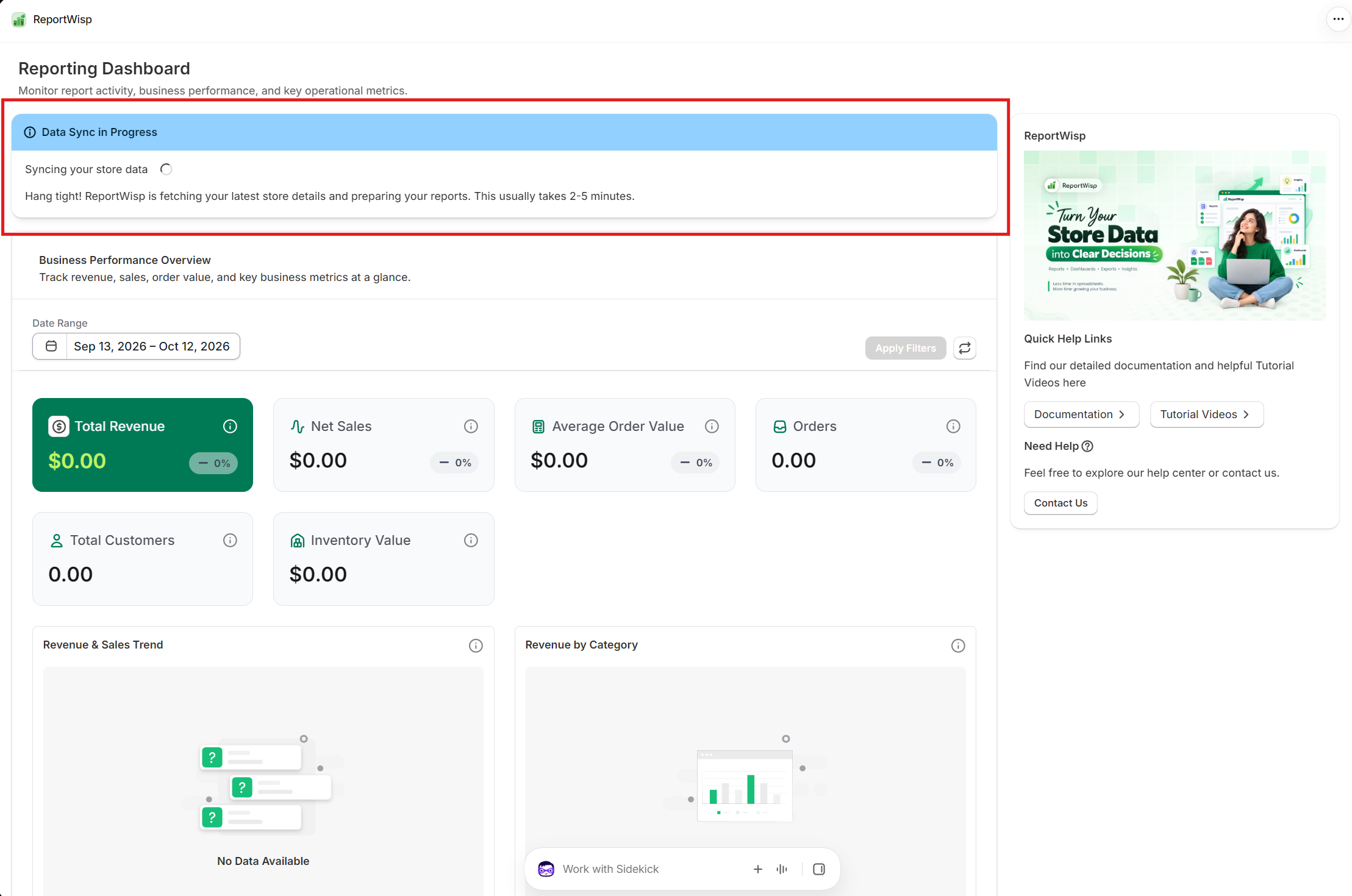
You may see the following message inside the app:
Data Sync in Progress
Syncing your store data
Hang tight! ReportWisp is fetching your latest store details and preparing your reports. This usually takes 2–5 minutes.
Sync time may vary depending on your store’s data volume.
Stores with more orders, products, customers, variants, inventory records, transactions, refunds, gift cards, payouts, disputes, or POS activity may take longer to sync.
Step 5: Open the ReportWisp Dashboard
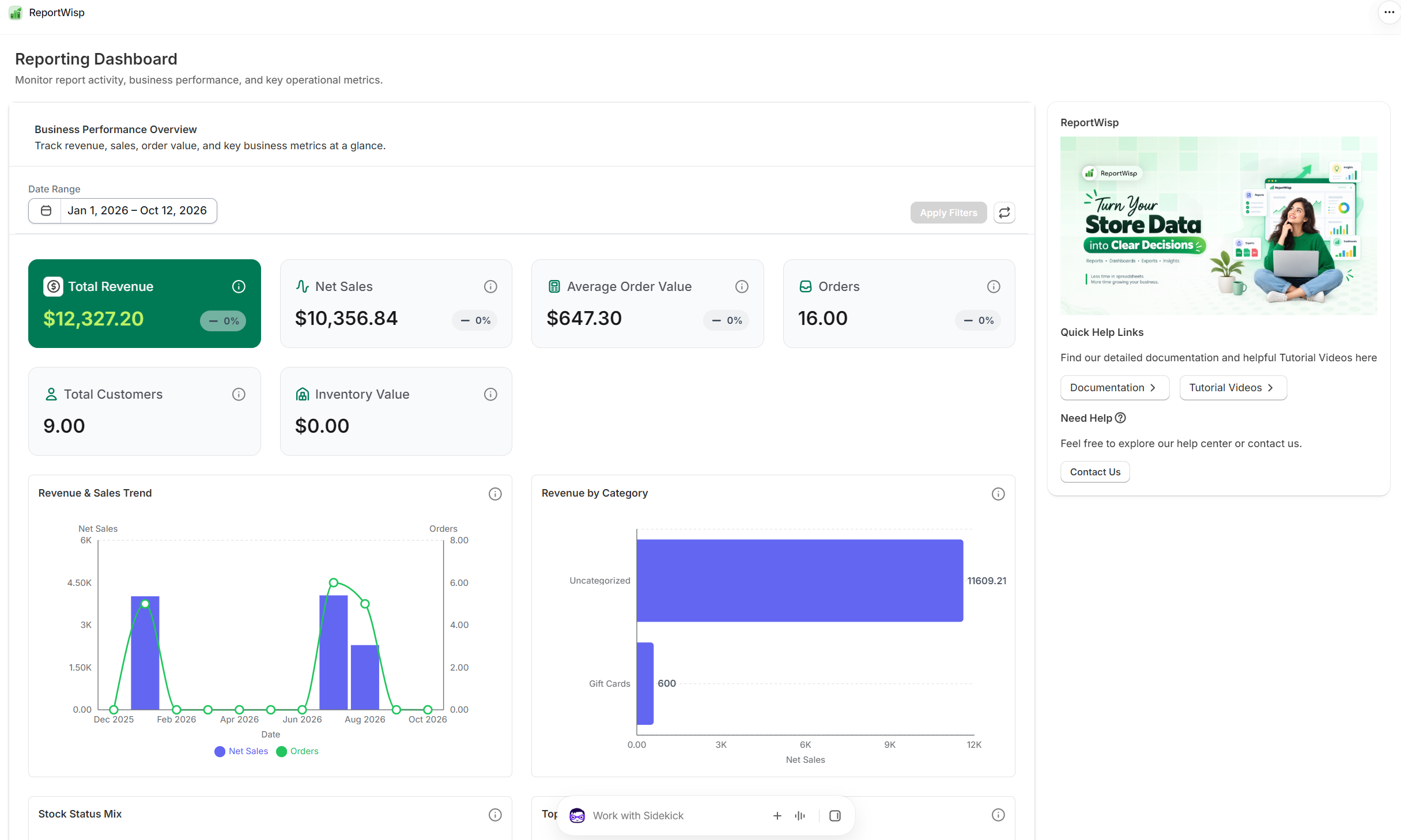
Once the data sync is complete, open ReportWisp from your Shopify admin.
The ReportWisp dashboard gives you access to the available report categories and reporting views supported by your current plan and available store data.
From the dashboard, you can start reviewing store performance across areas such as sales, orders, products, customers, inventory, refunds, payments, payouts, disputes, gift cards, channels, and POS operations where data is available.
Step 6: Understand Available Report Categories
After sync is complete, you can explore the report categories available in ReportWisp:
- Executive Store Health
- Orders Reporting
- Order Line Item Analytics
- Refunds & Reversals
- Products & Inventory Health
- Customers & Retention
- Sales Channels & Attribution
- Payments & Transactions
- Inventory Locations
- Payout Reconciliation
- Gift Cards
- Disputes & Risk
- POS & Retail Operations
Available report categories may depend on your current ReportWisp plan, approved permissions, and the data available in your Shopify store.
For example:
- Gift Card reports may show data only if your store uses gift cards.
- POS reports may show data only if your store uses Shopify POS.
- Payout and dispute may reports depend on Shopify Payments and available payment data.
- Inventory reports may depend on products, variants, locations, and inventory tracking.
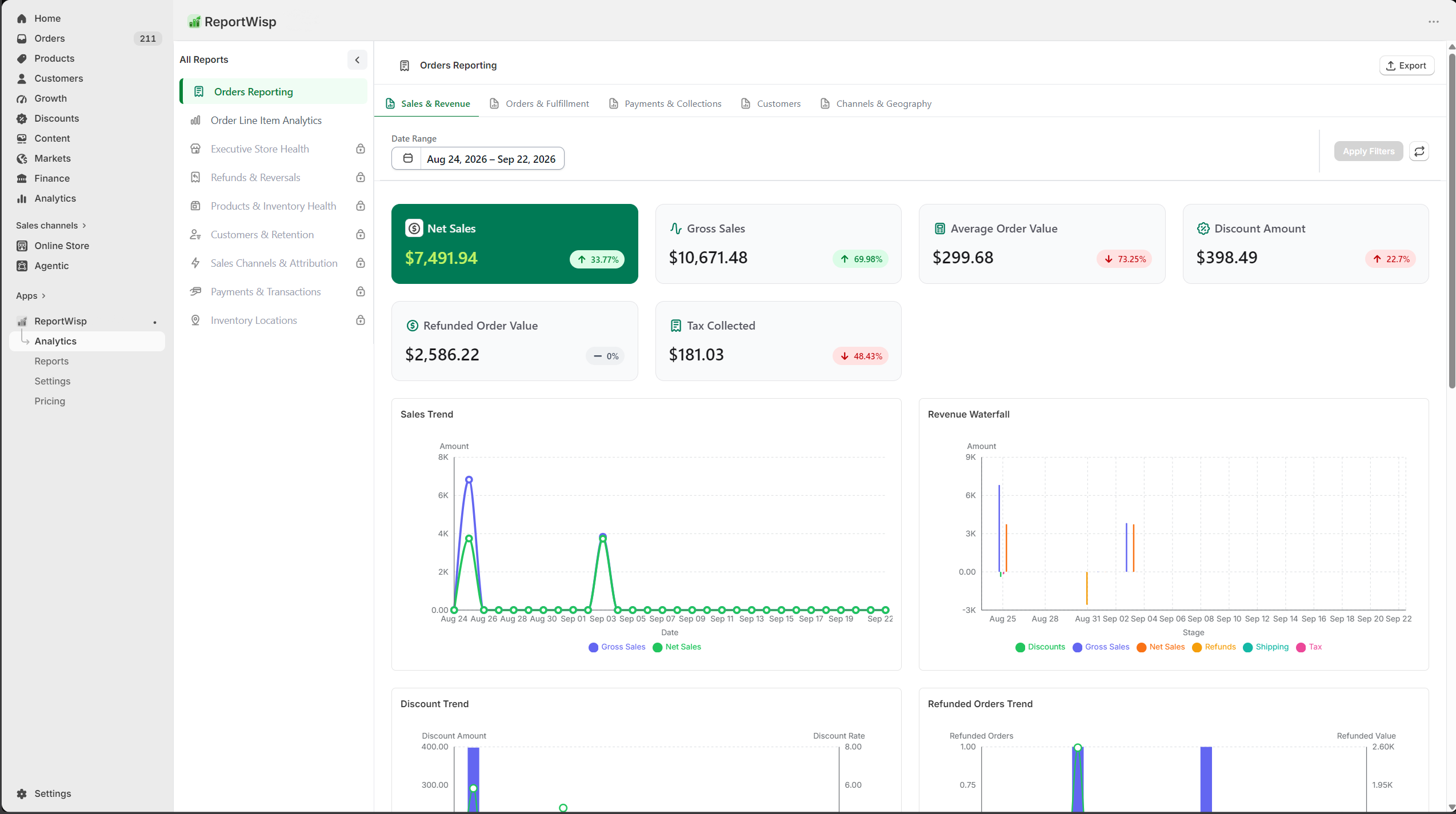
Step 7: Review Reports, Charts, Tables & Exports
ReportWisp reports may include a combination of:
- KPI cards
- Charts
- Tables
- Summary views
- Performance breakdowns
- Category-level report views
Use dashboards and charts to quickly understand performance trends.
Use tables when you need to review detailed records, compare rows, or investigate specific report data. Export the reports to extend the use case further by sharing it internally.
For example:
- Use Executive Store Health to review overall performance.
- Use Orders Reporting to review order and sales activity.
- Use Order Line Item Analytics to review product and variant-level performance.
- Use Refunds & Reversals to review refund activity.
- Use Products & Inventory Health to review product and stock performance.
- Use Customers & Retention to review customer behavior.
- Use Sales Channels & Attribution to review channel performance.
- Use Payments & Transactions to review payment activity.
- Use Payout Reconciliation to review payout-related data where available.
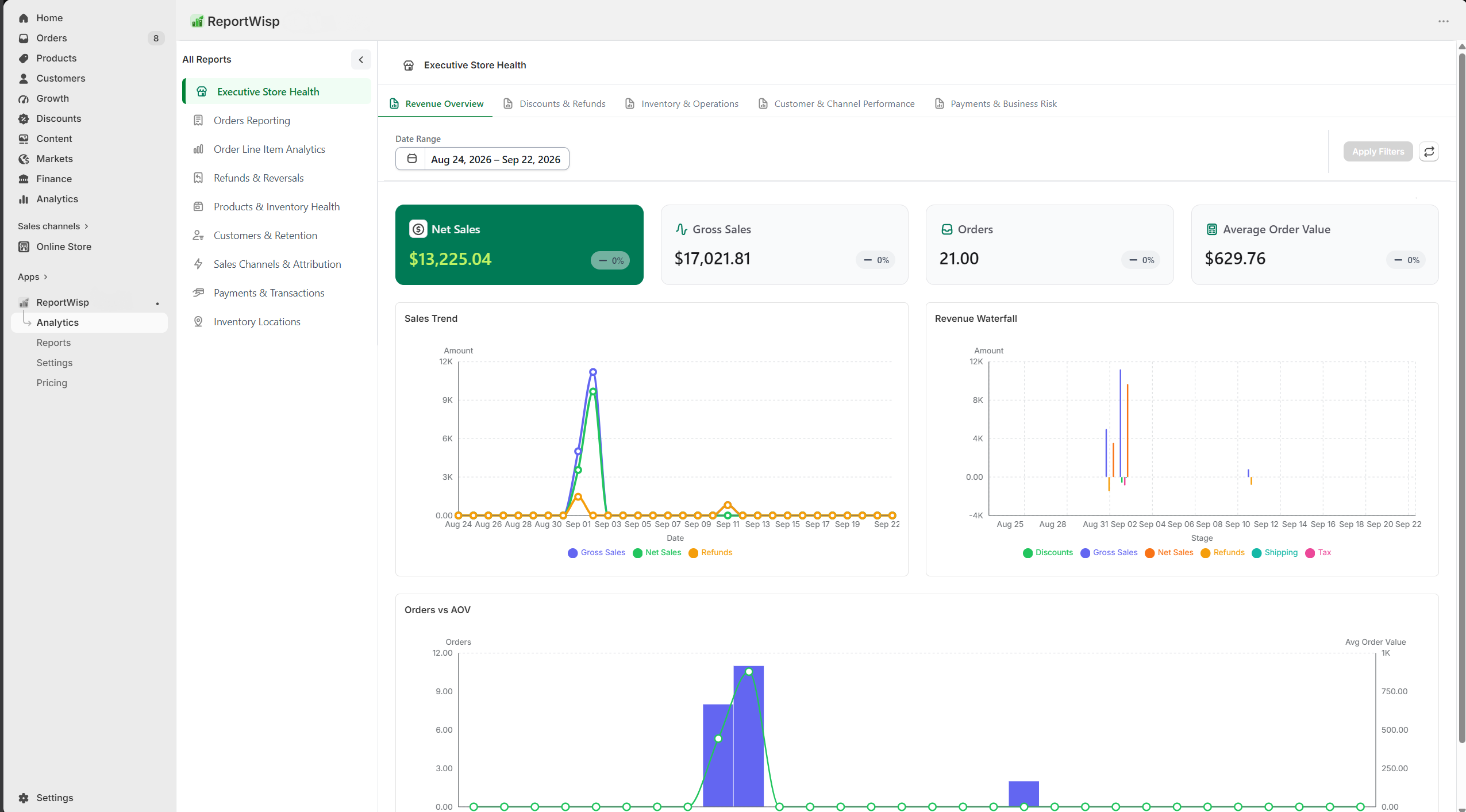
Step 8: Start Using ReportWisp in Store Operations
Once ReportWisp is installed and data sync is complete, your store is ready to start using reports.
You can use ReportWisp to support:
- Daily store performance checks
- Weekly business reviews
- Monthly sales and finance reviews
- Product and inventory planning
- Customer retention analysis
- Refund monitoring
- Channel performance review
- Payment and payout visibility
- Operational decision-making
- ReportWisp is most useful when it becomes part of your regular reporting rhythm.
For example:
- Store owners can review Executive Store Health to understand overall business performance.
- Operations teams can review Orders Reporting and Inventory Locations to monitor fulfillment and stock activity.
- Finance teams can review Payments & Transactions, Payout Reconciliation, Refunds & Reversals, Gift Cards, and Disputes & Risk.
- Marketing teams can review Customers & Retention and Sales Channels & Attribution.
- Inventory teams can review Products & Inventory Health and Order Line Item Analytics.
Need Help?
If you encounter any issue during installation, permission approval, data sync, report access, date filtering, or table export, contact the ReportWisp support team at: support@reportwisp.com
When reaching out, include:
- Store name
- Shopify store URL
- Screenshot of the issue, if available
- Step where the issue occurred
- Error message, if any
- Report category or table name, if the issue is related to report access or export
This helps our team review the issue faster.